VOLT AI
Chat with an assistant that looks up your team's data, runs pipelines and drives the viewer, on a model your team configures.
VOLT AI is a chat assistant built into VOLT. It answers questions about your team's trajectories, analyses, plugins, clusters, notebooks and whiteboards by reading them through tools, so its answers come from your data rather than from guesses. It can also act: run an analysis pipeline, rename or delete things, draw on a whiteboard, open a trajectory in the 3D viewer and change what the viewer shows.
VOLT does not ship a model. VOLT AI runs on a model from a provider your team connects, with your team's API key.
Connect a provider
Providers are set per team, in Settings › Integrations (/dashboard/settings/integrations), under AI Providers.
Click Connect. The Add provider dialog opens.
Pick the Provider and enter its API key. Ollama needs no key; it asks for an Endpoint instead (http://localhost:11434/v1 by default). For the other providers, Custom endpoint (optional) sends requests to a gateway of your own instead of the provider's API.
Under Models, add each model the team may use: its Model ID as the provider names it (for example gpt-4o) and an optional Display name, then Add. VOLT has no built-in model list, so only the models you add here are offered.
Choose the Default model, leave Enabled on, and click Save.
A team has at most one integration per provider. Each one in the list has Configure and Remove buttons. To keep the current key when you configure a provider again, leave API key empty. The server stores keys encrypted and never sends them back to the browser.
| Provider | Provider |
|---|---|
| OpenAI | Cohere |
| Anthropic | DeepSeek |
| DeepInfra | |
| Groq | Cerebras |
| xAI (Grok) | Together AI |
| Mistral | Fireworks AI |
| Ollama |
VOLT does not test the key when you save it. A wrong key shows up as a failed answer in the chat.
Managing providers uses the team's team permission: team:read to see them, team:create to connect one, team:update to change one and team:delete to remove one. With the built-in roles, only the Owner can change providers.
Chat with VOLT AI
The AI page
Open VOLT AI in the sidebar (/dashboard/ai). The sidebar switches to your conversations in the selected team: New conversation, a Search… field and the Recent list. Hover a conversation to rename it or delete it (Delete this conversation?). Conversations are private: only you see yours, and each belongs to the team it was started in.
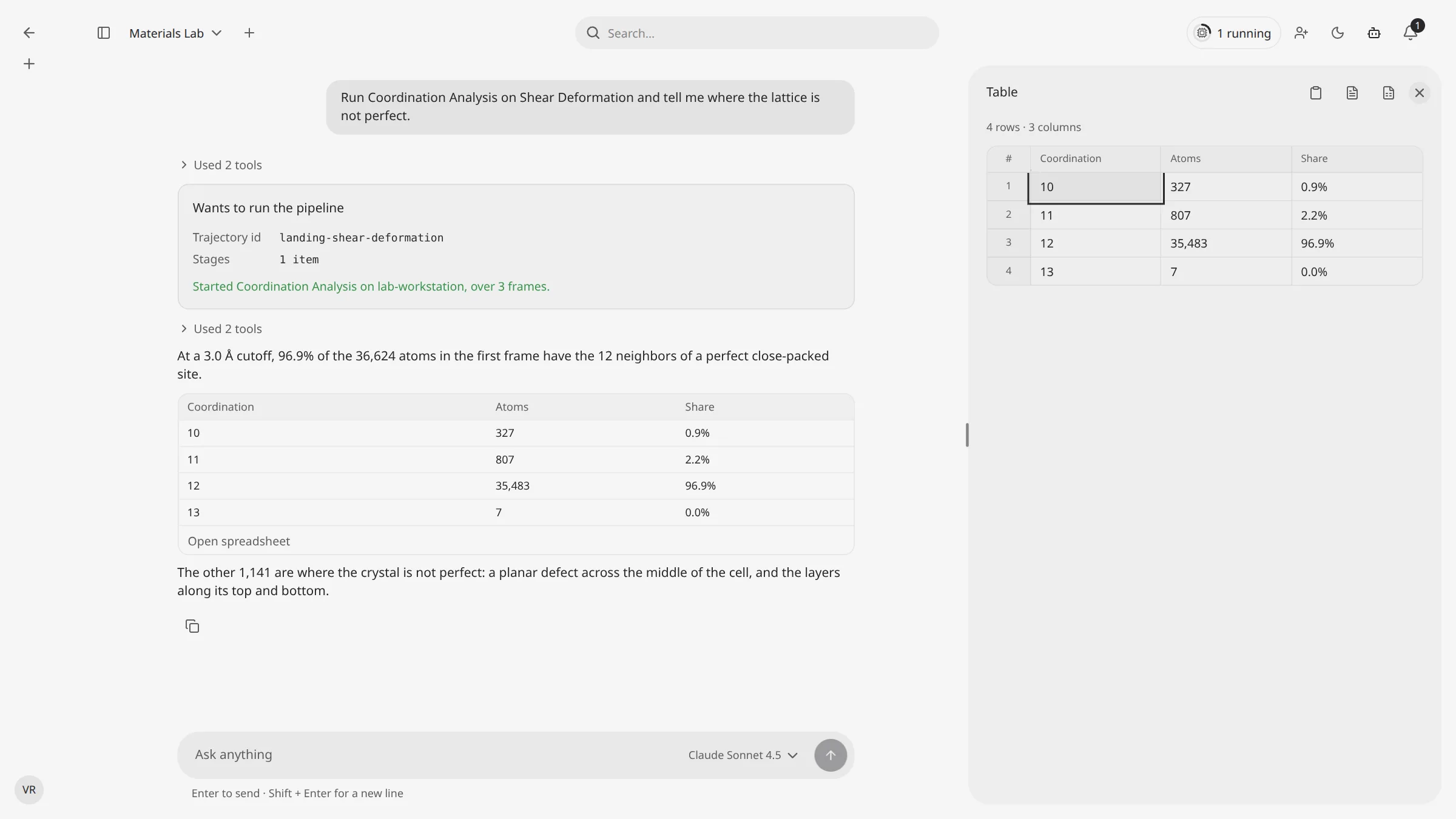
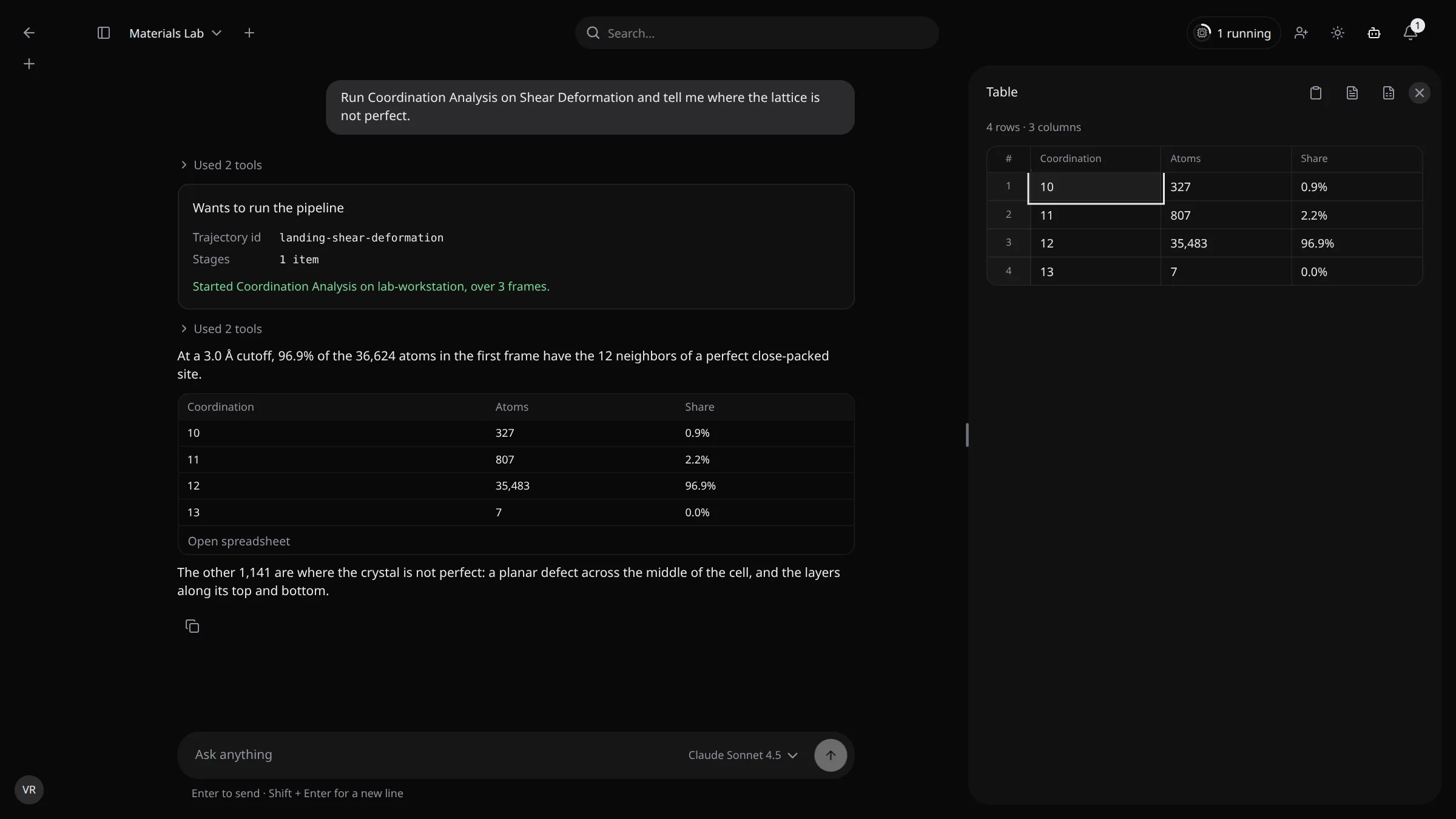
Type in Ask anything and press Enter to send. Next to the box, the model picker lists every model of the team's enabled providers, with the provider under each name. A conversation remembers the model you last used in it. When you haven't picked one, it uses the default model of the most recently connected provider. While VOLT AI answers, the send button becomes a stop button (Stop generating).
The answer streams in. Above the text, a collapsible trace shows the model's reasoning (Thinking…, Thought for …) and the tools it called (Used N tools). Copy message copies an answer.
A table in an answer has Open spreadsheet. It opens the table in a panel beside the conversation, where you can edit cells, copy the table and download it with Download CSV or Download Excel.
The floating assistant
The Volt AI button in the dashboard header, the whiteboard editor and the canvas toolbar opens the same chat in a floating panel, with New conversation and Open full AI page. When you leave the AI page with a conversation open, the floating panel picks it up.
How a turn runs
- A conversation runs one turn at a time. Sending while VOLT AI is still answering is refused.
- The turn runs on the server. Closing or reloading the tab does not stop it, and a tab that opens the conversation mid-turn sees what has been said so far. Only Stop generating ends a turn early.
- A turn takes at most 48 model steps.
- When a conversation grows long (about 240,000 characters of history), VOLT folds its earlier part into a summary that the model reads instead. The model can also fold it on demand with the
context_compacttool.
Tools
VOLT AI works through tools. Server tools run on the VOLT server with your identity, in the conversation's team. Browser tools run in your tab: they navigate, open panels and control the 3D viewer. A browser tool runs only in the tab that sent the message. With no such tab, nothing runs and the model is told so. Viewer tools wait up to 30 seconds for the viewer to open before reporting that none is open.
Permissions
VOLT AI uses your role in the team, never more. Each tool declares the team permission that the same operation needs over the HTTP API. The model is offered only the tools your role allows; it does not see the others. Tools marked — below touch only your own account or screen, or need only team membership, as their HTTP twins do.
Using VOLT AI itself needs:
| To | Permission |
|---|---|
| Open the AI page and your conversations | ai-conversation:read |
| Send messages, and approve or reject cards | ai-conversation:create |
| Rename / delete a conversation | ai-conversation:update / ai-conversation:delete |
| Load the team's providers and models | team:read |
With the built-in roles, Owner and Member can use VOLT AI. Viewer cannot. Admin has every ai-conversation permission but not team:read, so the AI page cannot load the team's providers for an Admin.
Approvals
A tool that changes your work asks you first. Instead of running it, VOLT AI shows a card with what it wants to do and the input it will use, with Approve and Reject (or Approve all N and Reject all when it asks for several at once).
- Approve: the server runs the tool with exactly the input on the card, after checking your permissions again. The card shows Approved. Running…, then the result, or Approved, but it failed: ….
- Reject: nothing runs. The card shows Rejected. Nothing ran. and VOLT AI asks what you would rather do.
While a card is waiting, the model cannot call that tool again; it answers your other questions instead.
Every tool that writes asks first, with these exceptions, which run without a card: update_conversation (rename this conversation), create_scripting_notebook, create_whiteboard, clone_plugin (makes a new draft) and draw_on_whiteboard. manage_sessions asks first to revoke sessions, but not to list them. Tools that only read never ask. Neither do the browser tools that only change what your screen shows.
Tool reference
In the Asks first column, yes means the tool shows an approval card.
Conversations
| Tool | What it does | Permission | Asks first |
|---|---|---|---|
list_conversations | Lists your conversations. | ai-conversation:read | no |
update_conversation | Renames a conversation. | ai-conversation:update | no |
delete_conversation | Deletes a conversation. | ai-conversation:delete | yes |
context_compact | Folds the earlier part of this conversation into its summary. | — | no |
Search and overview
| Tool | What it does | Permission | Asks first |
|---|---|---|---|
global_search | Searches the team's trajectories, analyses and plugins, and your teams, with links to each. | — | no |
get_dashboard_metrics | Gets the dashboard's totals and time series. | — | no |
get_activity_summary | Summarizes recent team activity, or yours. | daily-activity:read | no |
get_team_context | Gets the team, its members with roles and presence, and its AI providers and models. | team:read | no |
Trajectories and jobs
| Tool | What it does | Permission | Asks first |
|---|---|---|---|
list_trajectories | Lists trajectories, by folder or search. | trajectory:read | no |
list_public_trajectories | Lists the team's public trajectories. | trajectory:read | no |
list_sample_simulations | Lists the bundled sample simulations. | trajectory:read | no |
get_trajectory | Gets one trajectory. | trajectory:read | no |
get_trajectory_team_metrics | Gets trajectory and storage totals for the team. | trajectory:read | no |
get_simulation_cell | Gets a trajectory's simulation cell. | simulation-cell:read | no |
update_trajectory | Renames a trajectory or changes its public visibility. | trajectory:update | yes |
clone_trajectory | Clones a trajectory, optionally onto another cluster. | trajectory:create | yes |
move_trajectory | Moves a trajectory into a folder or to the root. | trajectory:update | yes |
delete_trajectory | Deletes a trajectory and its analyses. | trajectory:delete | yes |
delete_trajectory_folder | Deletes a folder and the trajectories in it. | trajectory:delete | yes |
retry_team_failed_jobs | Retries a trajectory's failed jobs. | trajectory:update | yes |
remove_team_running_jobs | Removes a trajectory's running jobs. | trajectory:delete | yes |
Analyses
| Tool | What it does | Permission | Asks first |
|---|---|---|---|
list_analyses | Lists the team's analyses. | analysis:read | no |
list_trajectory_analyses | Lists a trajectory's analyses. | analysis:read | no |
list_analyses_by_config | Lists the analyses of one configuration. | analysis:read | no |
get_analysis | Gets one analysis. | analysis:read | no |
get_analysis_artifacts | Lists an analysis's expected artifacts and their readiness. | analysis:read | no |
get_analysis_frame_log | Gets the log of one analysis frame. | analysis:read | no |
summarize_analysis_run | Summarizes a run: plugin, configuration, progress, failures, runtime, artifacts. | analysis:read | no |
compare_analyses | Compares two runs side by side. | analysis:read | no |
retry_failed_analysis_frames | Retries an analysis's failed frames. | analysis:update | yes |
delete_analysis | Deletes an analysis. | analysis:delete | yes |
Plugins, pipelines and results
| Tool | What it does | Permission | Asks first |
|---|---|---|---|
list_plugins | Lists the team's installed plugins. | plugin:read | no |
get_plugin | Gets a plugin's metadata. | plugin:read | no |
describe_plugin_arguments | Describes the arguments a plugin accepts. | plugin:read | no |
compare_plugins | Compares two plugins' arguments, exposures and workflows. | plugin:read | no |
validate_workflow | Validates a workflow graph and reports whether it can be published. | plugin:read | no |
search_registry_plugins | Searches the public plugin registry. | plugin:read | no |
install_plugin | Installs a plugin from the registry. | plugin:create | yes |
clone_plugin | Clones a plugin into a new draft. | plugin:create | no |
publish_plugin | Publishes a draft plugin after validating it. | plugin:update | yes |
uninstall_plugin | Removes a plugin from the team. | plugin:delete | yes |
execute_pipeline | Runs a pipeline of plugin stages on a trajectory. | plugin:create | yes |
list_plugin_listing_documents | Lists an exposure's result rows. | plugin:read | no |
list_analysis_result_options | Lists the results and sub-listings an analysis produced. | plugin:read | no |
read_analysis_result_rows | Reads rows of a result table. | plugin:read | no |
get_sub_listing | Reads a nested sub-listing for one timestep. | plugin:read | no |
summarize_analysis_result | Computes per-column statistics of a result. | plugin:read | no |
Clusters
| Tool | What it does | Permission | Asks first |
|---|---|---|---|
list_clusters | Lists the team's clusters. | team:read | no |
get_cluster | Gets one cluster. | team:read | no |
get_cluster_health_summary | Summarizes a cluster's connection, version, heartbeat, capabilities and queues. | team:read | no |
get_cluster_resource_limits | Gets a cluster's CPU and memory limits. | team:read | no |
get_cluster_runtime_snapshot | Gets a cluster's live queue snapshot. | team:read | no |
list_cluster_transfer_jobs | Lists a cluster's transfer jobs. | team:read | no |
list_remote_cluster_files | Lists files in a cluster's storage, within a password-confirmed remote access session. | team:read | no |
generate_cluster_install_manifest | Generates a cluster's install manifest. It needs the cluster's daemon password. | team:create | no |
update_cluster_role | Changes a cluster's role. | team:update | yes |
update_cluster_queue_concurrency | Changes a cluster's queue concurrency and limits. | team:update | yes |
regenerate_cluster_token | Issues a new enrollment token. | team:update | yes |
Notebooks
| Tool | What it does | Permission | Asks first |
|---|---|---|---|
list_scripting_notebooks | Lists the team's notebooks. | scripting:read | no |
get_scripting_session_status | Gets a notebook's Jupyter session status. | scripting:read | no |
create_scripting_notebook | Creates a notebook. | scripting:create | no |
update_scripting_notebook | Updates a notebook. | scripting:update | yes |
delete_scripting_notebook | Deletes a notebook. | scripting:delete | yes |
start_scripting_jupyter_session | Starts a notebook's Jupyter session. | scripting:create | yes |
stop_scripting_session | Stops a notebook's Jupyter session. | scripting:update | yes |
Whiteboards
| Tool | What it does | Permission | Asks first |
|---|---|---|---|
list_whiteboards | Lists the team's whiteboards. | whiteboard:read | no |
get_whiteboard | Gets one whiteboard. | whiteboard:read | no |
get_whiteboard_state | Reads a whiteboard's whole scene. | whiteboard:read | no |
create_whiteboard | Creates a whiteboard. | whiteboard:create | no |
update_whiteboard | Updates a whiteboard. | whiteboard:update | yes |
move_whiteboard | Moves a whiteboard to another folder. | whiteboard:update | yes |
delete_whiteboard | Deletes a whiteboard. | whiteboard:delete | yes |
delete_whiteboard_folder | Deletes a whiteboard folder. | whiteboard:delete | yes |
draw_on_whiteboard | Draws boxes, text, arrows, lines, ellipses and diamonds on a whiteboard, live. Runs in your tab. | whiteboard:update | no |
Your account
| Tool | What it does | Permission | Asks first |
|---|---|---|---|
update_profile | Changes your name or email. | — | yes |
manage_sessions | Lists your sign-in sessions, revokes one or revokes all others. | — | to revoke |
get_notifications | Lists your notifications. | — | no |
In your tab: navigation and layout
| Tool | What it does | Permission | Asks first |
|---|---|---|---|
navigate_to | Takes you to a page of the app. The page's own permission check still applies. | — | no |
open_in_viewer | Opens a trajectory in the canvas, optionally focusing an analysis or a collaborator's workspace. | trajectory:read | no |
switch_team | Switches the selected team and goes to the dashboard. | — | yes |
open_command_palette | Opens, closes or toggles the command palette. | — | no |
open_panel | Opens a canvas panel or selects a modifier in it. | — | no |
set_chat_surface | Opens the floating assistant, goes to the AI page or hides the assistant. | — | no |
set_theme | Switches between light, dark and system theme. | — | no |
In your tab: the 3D viewer
These need a trajectory open in the canvas.
| Tool | What it does | Permission | Asks first |
|---|---|---|---|
get_viewer_state | Reads the viewer's frame, playback, scene and display settings. | — | no |
focus_result | Highlights a result or modifier, or clears the highlight. | — | no |
set_camera_view | Snaps the camera to front, back, left, right, top, bottom or isometric. | — | no |
reset_camera | Resets the camera to frame the whole scene. | — | no |
set_playback | Sets playback speed, frame rate and loop range. | — | no |
control_playback | Plays, pauses or stops playback. | — | no |
seek_frame | Jumps to a timestep, or to the first, last, next or previous frame. | — | no |
set_appearance | Sets atom size, cell visibility and render quality. | — | no |
set_environment | Sets background, floor grid and fog. | — | no |
set_visible_layers | Shows or hides the atoms layer. | — | no |
reset_view_settings | Undoes or redoes the last viewer change, or resets every viewer setting. | — | no |
configure_color_coding | Colors atoms by a per-atom property with a color map. Collaborators in the same workspace see the change. | — | no |
push_expression_select | Highlights atoms that match an expression, for example Position.X > 10. | — | no |
launch_grain_segmentation_analysis | Adds a grain-segmentation stage to the canvas pipeline. It does not run it; you run the pipeline from the canvas. | — | no |
To learn what the canvas and pipelines do with these settings, see Canvas and Pipelines.