Analysis results
What an analysis produces, where each kind of result appears, and how to download it.
An analysis is one plugin run over a set of frames. For every frame it computes, it stores results, grouped by the plugin's exposures: each exposure is one named output, such as a structure classification or a set of dislocation lines. A plugin's exposures and what they contain are listed on its page in the plugin catalog.
What an exposure can hold
| Kind | What it is | Where you see it |
|---|---|---|
| Listing | A table with one row per frame of each analysis, with the columns the plugin defines | The listing pages and the canvas timeline |
| Sub-listings | Detailed tables for one frame, such as counts per structure type | The sub-listings page and the canvas timeline |
| 3D model | Atoms, a mesh, lines or bonds, per frame | Visual elements in the canvas |
| Panel tables | Short summary tables for one frame | Results in the canvas |
| Per-atom properties | Values the plugin computed for each atom | The Particles tab, the per-atom viewer, color coding and expressions |
| Charts | Images the plugin rendered | The downloaded bundle |
Besides its exposures, every frame of an analysis keeps the plugin's output in a log, shown in the canvas's Log tab.
In the canvas
Select an analysis in the pipeline panel, or one of its models, to make it the current analysis. The canvas then shows its results for the frame on screen:
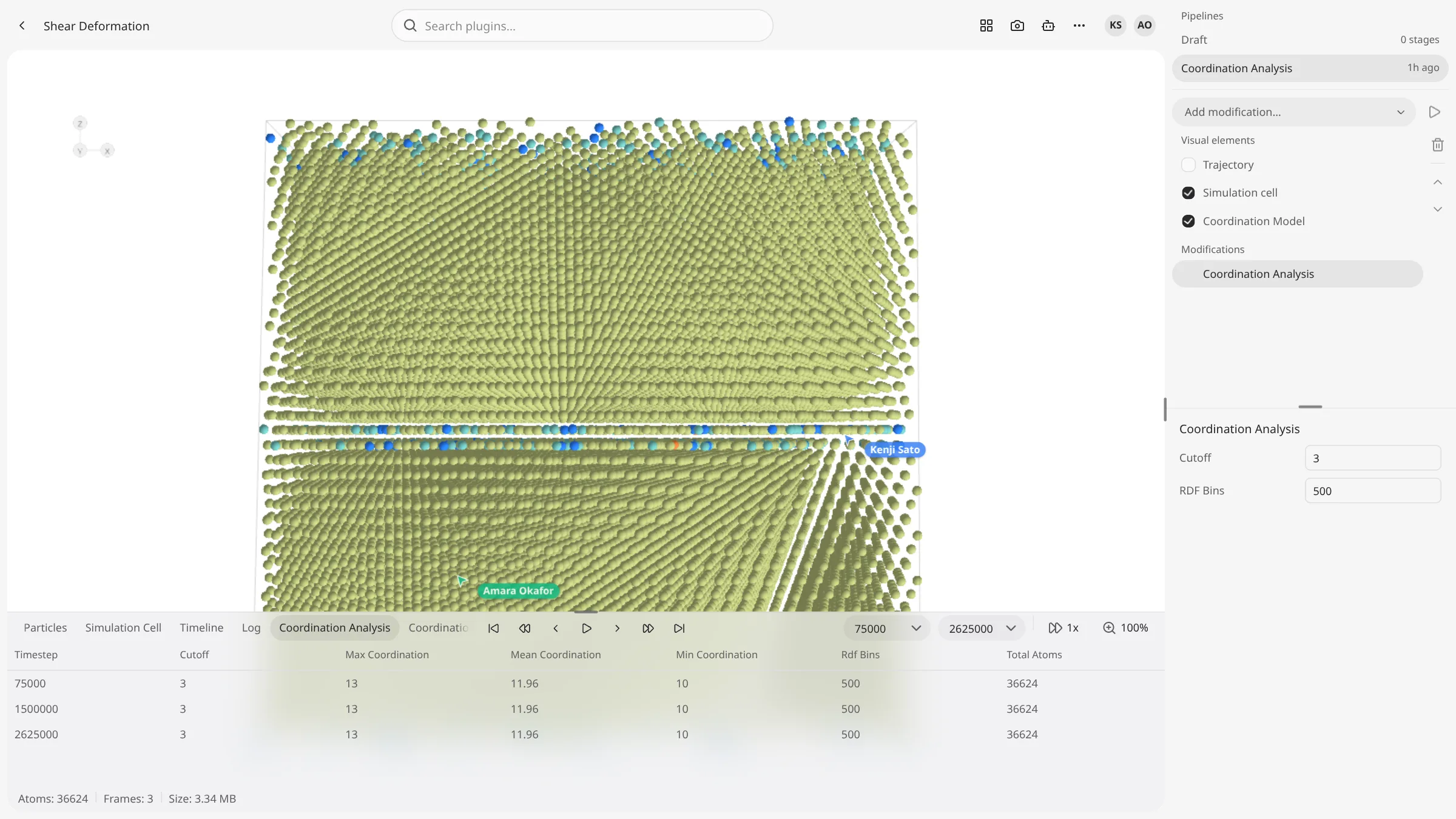
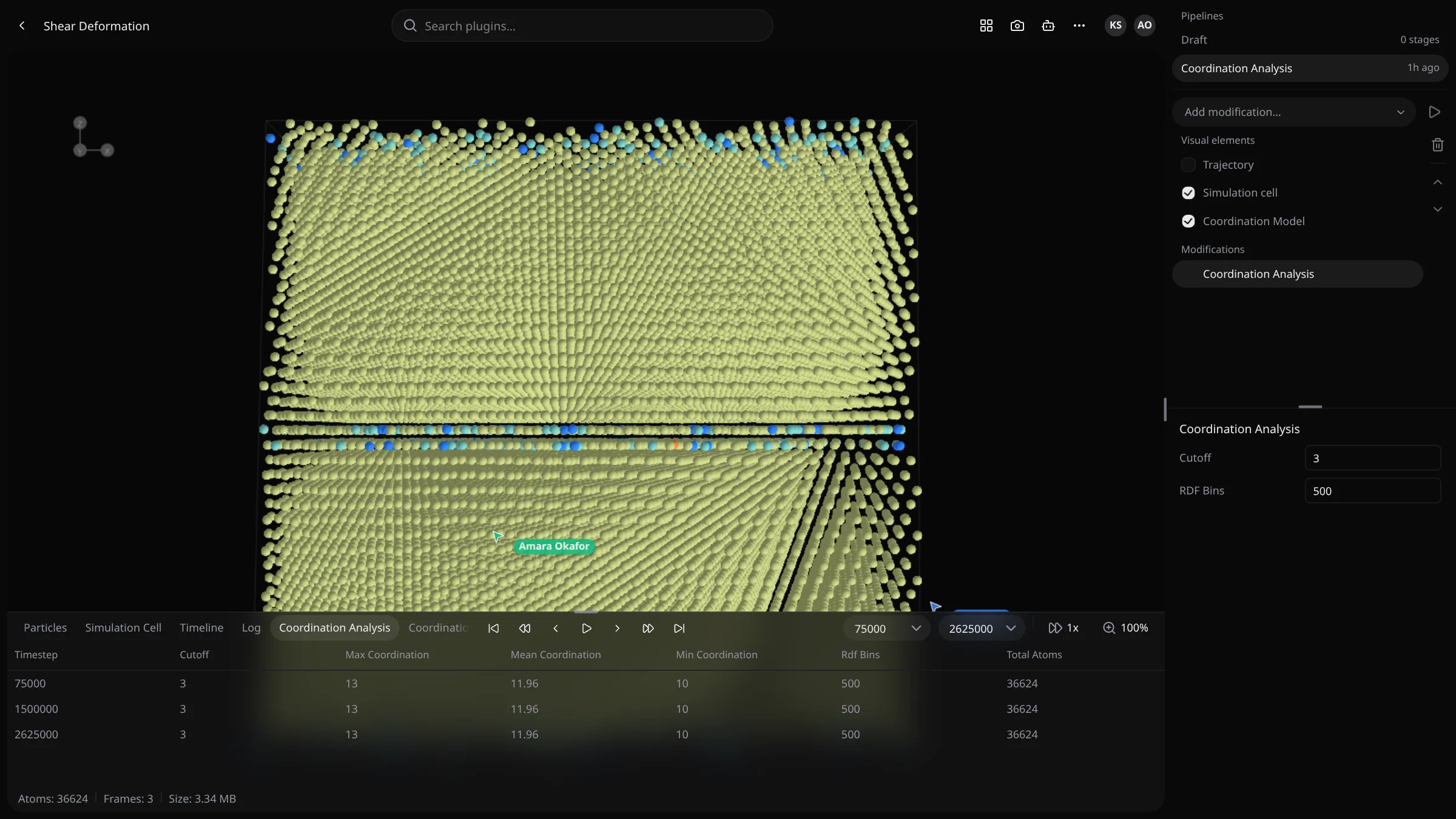
- Visual elements lists its 3D models. Click one to draw it, or tick it to draw it over what is on screen. Models still being produced show Pending.
- Results, under the analysis's settings, shows its panel tables, up to 64 rows each, for the current frame. For example, Polyhedral Template Matching shows Structure analysis results with Count and Fraction per structure type.
- The timeline gets one tab per listing. Rows load 20 at a time as you scroll. Right-click a row for Inspect Atoms, a View … entry per sub-listing, which opens that table in the tab (Back to listing returns), and Delete.
- Particles lists the frame's atoms with the analysis's per-atom properties as extra columns.
- Log shows what the plugin printed for the current frame.
Change frames and everything follows. Frames the analysis wasn't computed for show nothing.
Listing pages
Listings across trajectories have their own pages.
- Analysis in the sidebar expands to one entry per plugin with listings, and each to its listings. These
open
/dashboard/plugins/:pluginId/exposure/:exposureId/listing, with the rows of every trajectory in the team and a Trajectory column. - Trajectory in the page header, All Trajectories by default, narrows the page to one trajectory at
/dashboard/trajectory/:trajectoryId/plugins/:pluginId/exposure/:exposureId/listing. - View results on the analysis listing opens that analysis's trajectory-scoped page.
The page is titled with the listing's name and shows the columns the plugin defines. Right-click a row:
| Action | What it does |
|---|---|
| Inspect Atoms | Opens the per-atom viewer at that frame, with the analysis's per-atom properties |
| View sub-listing | Opens the sub-listings page at that frame, one entry per sub-listing |
| Delete | Deletes the analysis the row belongs to, with all its results, after a confirmation |
| Copy Document ID | Copies the row's ID |
Ctrl-click (⌘-click on macOS) selects several rows. With several selected, the menu keeps only Delete, which deletes every selected row's analysis, and Copy Document ID.
A row is one frame of an analysis, but Delete removes the whole analysis, every frame of it.
Sub-listings
/dashboard/trajectory/:trajectoryId/analysis/:analysisId/sub-listings shows the sub-listings of one exposure
at one frame. The page is titled with the sub-listing's name, with Timestep <N> under it.
When the exposure has several sub-listings, tabs switch between them.
Click a row to open its details at the side, with long values expanded. Click it again, or close the panel, to hide them.
The row actions fill in the page's URL parameters: exposureId, timestep, names (the sub-listings to offer as
tabs) and tab. Without the first two it reads Missing required parameters, and without names
No sub-listings available.
Per-atom properties
Plugins that compute a value per atom, such as a structure type or a coordination number, add it to the frame's atoms. Those properties appear:
- as columns in the Particles tab and in the per-atom viewer opened for that analysis,
- in the Property list of Color Coding,
- as names you can use in Expression Select,
- and as input for later analyses in the same pipeline.
Downloads
| Where | What you get |
|---|---|
| More actions → Download analysis as CSV, in the canvas toolbar | The current analysis, once it has completed |
| Download in the right-click menu of an analysis in Modifications | The same, for that analysis |
| Download in the right-click menu of a model in Visual elements | That exposure's listing for this analysis, as JSON |
| Download in the right-click menu of a listing tab in the timeline | The same |
| Download all analyses, in the command palette | Every completed analysis of the trajectory, as <trajectory>-analyses.zip |
An analysis download is AnalysisID-<id>.csv when the analysis has a single listing and nothing else. Otherwise
it is AnalysisID-<id>.zip, with:
Config.csv holds the analysis's parameters as Key and Value.
Download all analyses holds one archive per analysis, analysis-<id>-plugin-<plugin>.zip, with a folder per
frame: timestep-<N>/data (the results as Parquet files), timestep-<N>/chart (rendered charts) and
timestep-<N>/model (the 3D models, zstd-compressed GLB).
To download the trajectory's frames instead, see Downloads.
Deleting results
Results belong to their analysis and go away with it:
- Delete on the analysis listing, on a listing row, or on an analysis in the canvas.
- Delete on a saved pipeline run deletes the analyses it computed.
- Deleting the trajectory deletes all its analyses.
A deleted analysis can't be reused by caching, so running the same stage again computes it anew.