Dashboard
The home page of a team, its header and navigation, and the global search.
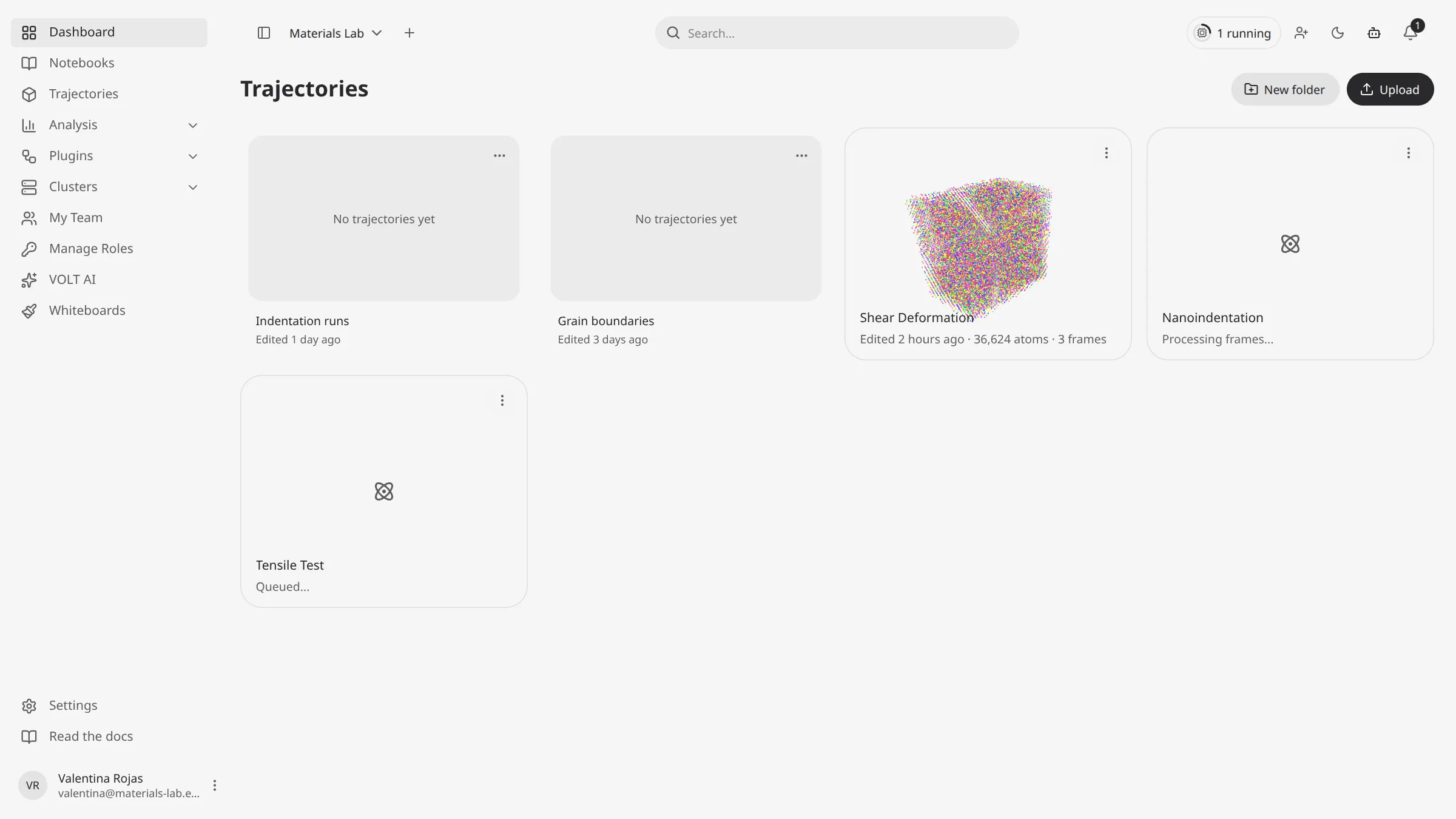
The dashboard at /dashboard is where you land after signing in. It shows the selected team's trajectories
and folders as cards, and it is wrapped in the chrome every dashboard page shares: the sidebar on the left,
the header on top, and, on narrow screens, a tab bar at the bottom.
Everything you see belongs to the team selected in the header. Switch teams and the page, the search and the jobs list follow.
The page
The page is titled Trajectories. Members who can create trajectories get two buttons next to the title:
- New folder opens New Trajectory Folder and creates a folder in the folder you are in.
- Upload opens your system's file picker. See Uploading.
You can also drop files or folders anywhere on the page to upload them. While you drag, the page reads Drop files to upload them.
Below the title is a grid with the folders of the current location first, then its trajectories. Inside a folder, breadcrumbs above the grid lead back to its parents and to Root.
Trajectory cards
A trajectory card shows the trajectory's preview image, its name and a caption:
- While the trajectory is processing, the caption is its stage (Queued..., Processing frames...).
- Once it is ready, the caption reads
Edited 3 minutes ago · 120,000 atoms · 50 frames.
Click a ready card, or focus it and press Enter, to open it in the canvas. Cards of trajectories that are still processing or that failed do not open. Double-click the name to rename the trajectory.
The ⋮ button in the card's corner opens its actions:
| Action | What it does |
|---|---|
| View scene | Opens the trajectory in the canvas. Disabled until processing completes. |
| Compute jobs | Opens a panel at the right with this trajectory's jobs. See Jobs. |
| Export | Downloads every frame as a ZIP. See Downloads. |
| Move to folder | Opens Move Trajectory to pick a destination folder. |
| Delete | Asks for confirmation, then deletes the trajectory and everything computed from it. |
Right-click a card for the same actions as the trajectory listing: View Scene, Inspect Atoms (the per-atom viewer at the first frame), Export, Move to Folder, Delete trajectory and Copy Document ID.
To move a trajectory without the dialog, drag its card onto a folder card or onto a breadcrumb.
Folder cards
A folder card fans out the previews of up to three of the most recently edited trajectories in that folder and its subfolders. An empty folder reads No trajectories yet. The caption under the card shows when the folder was last edited.
Click a folder card to open it. Its … button offers Open Folder, Rename Folder and Delete Folder; right-clicking the card adds Copy Document ID. Deleting a folder deletes its subfolders and every trajectory inside them.
Empty states
| Situation | What the page shows |
|---|---|
| You don't belong to any team yet | Create your first team, and the team creation dialog opens |
| The team has no trajectories | No simulations yet with Download sample simulations |
| After downloading the samples | Sample simulations ready with Upload trajectory |
| The folder you opened is empty | No trajectories in this folder with Upload trajectory |
Download sample simulations saves the server's sample files to your computer. Upload them like any other file to get a first trajectory to work with. See Sample simulations.
The header
From left to right:
| Control | What it does |
|---|---|
| Collapse sidebar / Expand sidebar | Narrows the sidebar to icons or widens it back. The choice is remembered in this browser. |
| Team switcher | Lists your teams. Pick one to switch. Hover a team to show its Leave team button. |
| Team actions (+) | Create team and Join existing team. |
| Global search | Searches the selected team. See below. |
| Compute jobs | A ring and a label (Jobs, 2 running, 5 queued) that opens the jobs popover. See Jobs. |
| Invite members | Opens the invitation panel. Disabled unless you can invite. See Teams. |
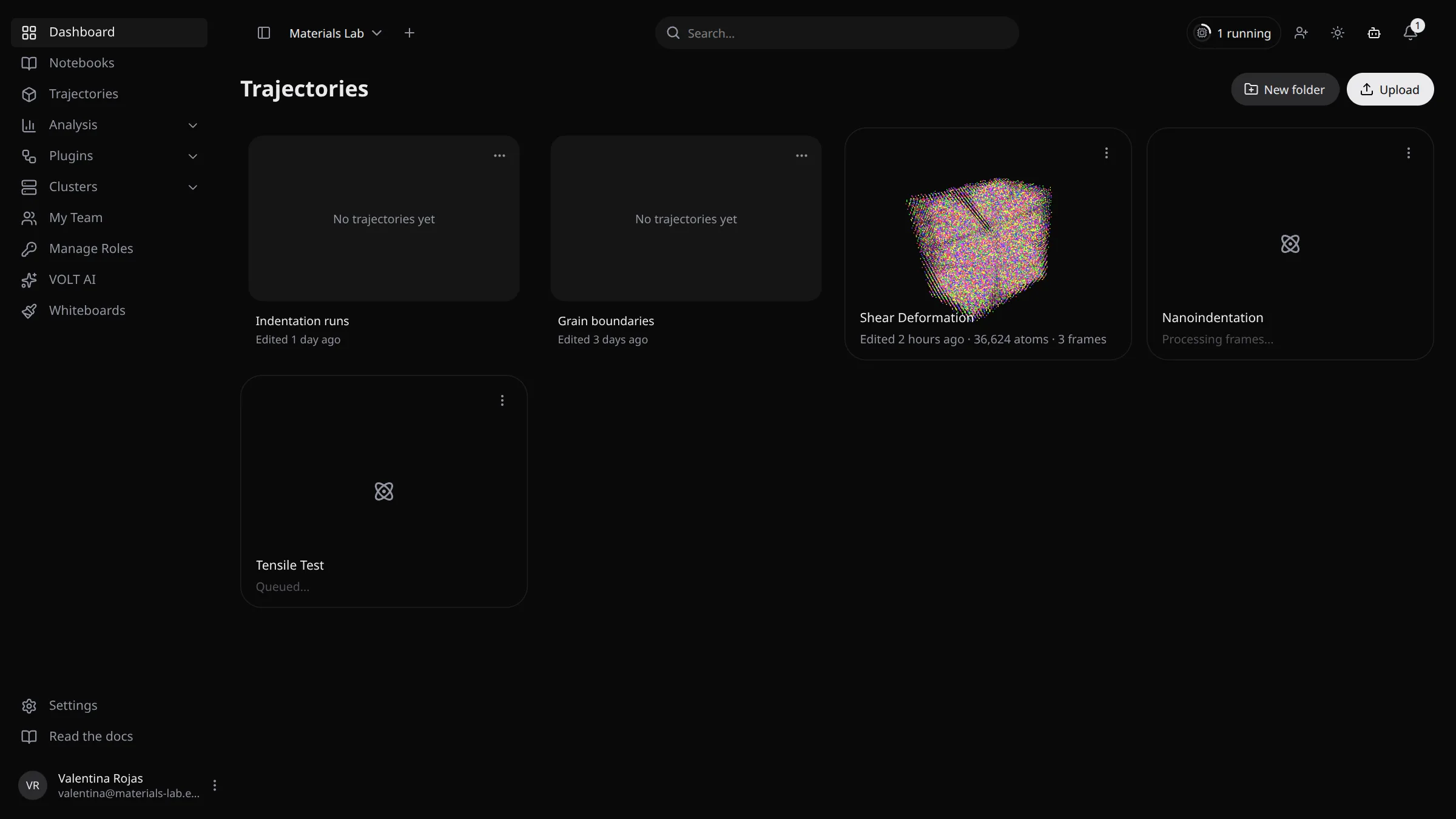
| Theme | Switches between light and dark. |
| VOLT AI | Opens the floating assistant. See VOLT AI. |
| Notifications | See Notifications. |
On single-user deployments the team switcher, Team actions and Invite members are hidden.
Global search
Type at least two characters in Search…, or press Ctrl K (⌘ K on macOS) to jump to the field. Results appear after a short pause, grouped in up to four sections of five results each:
| Section | Matches | Selecting a result |
|---|---|---|
| Analyses | Plugin name, the name of the trajectory it ran on, or an exact analysis ID | Opens the trajectory in the canvas |
| Trajectories | Trajectory name | Opens it in the canvas. Trajectories that haven't finished processing are grayed out. |
| Plugins | Plugin name or description | Opens the plugin's first results listing, or Installed if it has none |
| Teams | Name or description of the teams you belong to | Switches to that team and opens My Team |
Use the arrow keys to move through the results and Enter to open one. Escape closes the list.
On phones the search is a button in the header that opens the field over it.
The sidebar
The sidebar holds the main navigation:
| Entry | Opens |
|---|---|
| Dashboard | /dashboard |
| Notebooks | /dashboard/notebooks. See Notebooks. |
| Trajectories | /dashboard/trajectories/list, and switches the sidebar to the trajectories section |
| Analysis | Expands to View all (/dashboard/analysis-configs/list) and one entry per plugin that has results listings, each with its listings. See Results. |
| Plugins | Expands to Installed and Marketplace. See Plugins. |
| Clusters | Expands to View all and one entry per cluster with Monitor. See Clusters. |
| My Team, Manage Roles | Team pages. See Teams. |
| VOLT AI | /dashboard/ai |
| Whiteboards | /dashboard/whiteboards. See Whiteboards. |
| Settings | Your account settings. See Settings. |
| Read the docs | This site, in a new tab |
Your account menu sits at the bottom of the sidebar.
Entries you lack the permission for stay visible but disabled, with a tooltip that says why. My Team and Manage Roles don't appear on single-user deployments. Clusters doesn't appear when VOLT runs in your browser tab or in the desktop app, where the app itself is the only cluster.
Sections
Some areas take over the sidebar instead of opening a second column. They start with Go back:
- Trajectories lists Trajectories, Artifacts and Simulation cells. While the per-atom viewer is open it also lists Per-atom properties. See Trajectories.
- Settings lists the account settings pages.
- Secret keys lists Keys and Metrics.
- VOLT AI lists your conversations.
Phones and narrow windows
Below 1024 px wide the sidebar becomes a drawer. Open it with Open navigation in the header.
A tab bar at the bottom gives one-tap access to Dashboard, Trajectories, Upload trajectory, VOLT AI and Settings. Upload trajectory uploads into the folder you are in when you are on the dashboard or the trajectory listing, and into the root folder elsewhere.