SSH Import
Connect to remote machines over SSH and bring trajectory data closer to your team workspace.
TL;DR -- SSH Import stores reusable SSH connections for your team and lets you browse remote directories from VOLT. The import runtime is built to pull simulation data into the cluster-side processing pipeline instead of making you download and re-upload files manually.
Overview
SSH Import is meant for the common case where the data you need is already sitting on another machine: an HPC cluster, a lab server, or a workstation with large dumps you do not want to move by hand.
Instead of treating that remote machine as a separate workflow, VOLT lets you save the connection details once, test them, and explore the remote filesystem from inside the workspace.
SSH connections
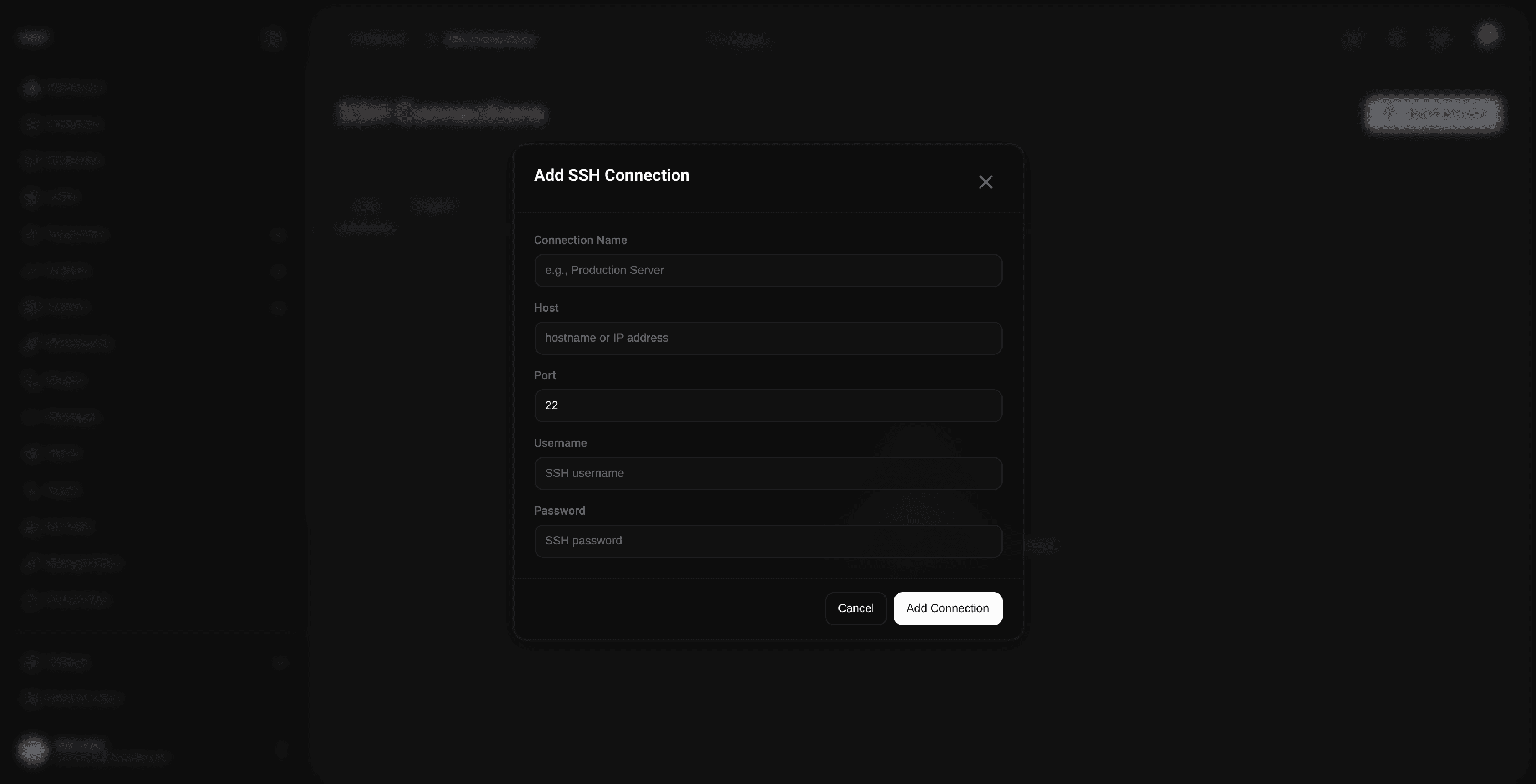
Each saved connection stores the basic credentials needed to open an SSH and SFTP session.
| Field | Description |
|---|---|
| Name | A label the team can recognize later |
| Host | Remote hostname or IP address |
| Port | SSH port, usually 22 |
| Username | Remote login name |
| Password | Stored encrypted and used by the import runtime |
The platform stores SSH passwords in encrypted form, and the daemon needs the server-side encryption key to decrypt them when an import job runs.
Testing and browsing
After saving a connection, the first useful step is usually to test it. That confirms the credentials and the basic network path before you commit to an import.
From there, the file explorer lets you navigate directories and inspect what is available remotely.
Today, this explorer is best thought of as a browsing surface rather than a full remote file manager. It is there to help you locate the data and verify the path.
How the import pipeline works
Once an import job is triggered, the daemon on your team cluster takes over. It opens the remote session, downloads the selected file or directory into temporary workspace storage, extracts archives when needed, parses the trajectory metadata, compresses and uploads the resulting dumps into MinIO, and kicks off GLB preprocessing so the trajectory can become viewable inside VOLT.
That is the important shift: SSH Import is not just a downloader. It is an alternate front door into the same trajectory pipeline used by normal uploads.
Supported data shapes
The runtime is built around LAMMPS-oriented inputs such as dump files, data files, and archives that contain them. If the selected input expands into multiple valid simulation files, the daemon processes them as part of the same import workflow.
Why teams use it
SSH Import is most useful when your cluster-side workflow already lives near a remote machine. It avoids the common pattern of pulling huge files down to a laptop just to push them back into another system moments later.
Imported trajectories still end up in the normal Trajectories and Analysis & Jobs flow once processing finishes.