Volt AI
Multi-provider AI assistant integrated across the entire platform.
Volt AI is the built-in assistant, available across the workspace as a dedicated conversation surface and as a floating assistant that follows you between modules. It supports 13 providers and roughly 110 tools; providers, tools, and permissions are scoped per team. Each team configures its own API keys and selects which models are available.
Supported Providers
| Provider | Description |
|---|---|
| OpenAI | GPT-4o, GPT-4, GPT-3.5, and other OpenAI models |
| Anthropic | Claude 4, Claude 3.5, and other Anthropic models |
| Gemini Pro, Gemini Flash, and other Google AI models | |
| Groq | Ultra-fast inference for open-source models |
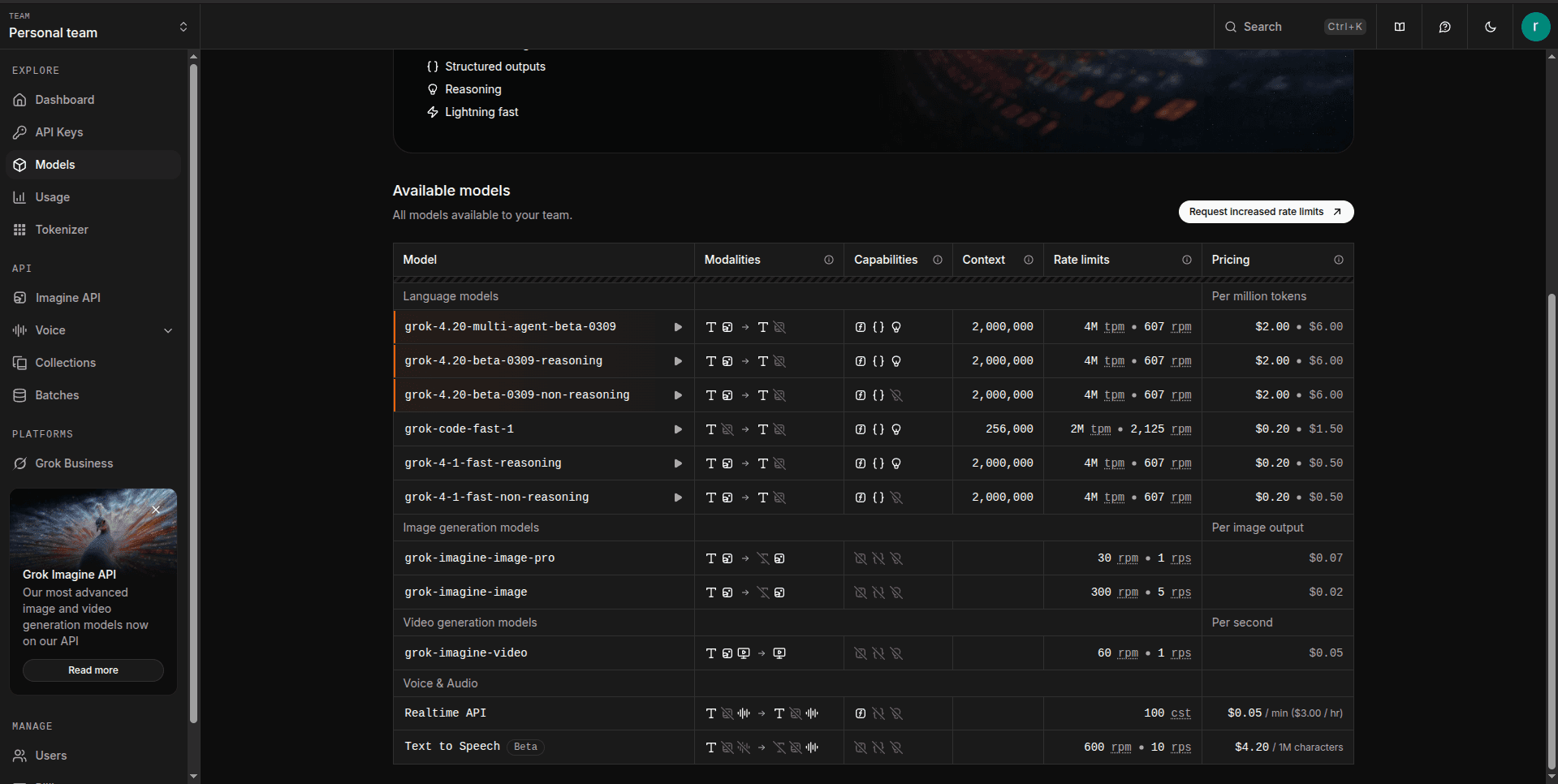
| xAI (Grok) | Grok models from xAI |
| Mistral | Mistral Large, Medium, Small, and open-source models |
| Cohere | Command R+, Command R, and other Cohere models |
| DeepSeek | DeepSeek reasoning and coding models |
| DeepInfra | Hosted open-source models with fast inference |
| Cerebras | High-speed inference for open-source models |
| Together AI | Open-source model hosting and fine-tuning |
| Fireworks | Fast inference for open-source models |
| Ollama | Self-hosted local models running on your own hardware |
Setting Up a Provider
Volt AI requires at least one provider configured in the team integrations area.
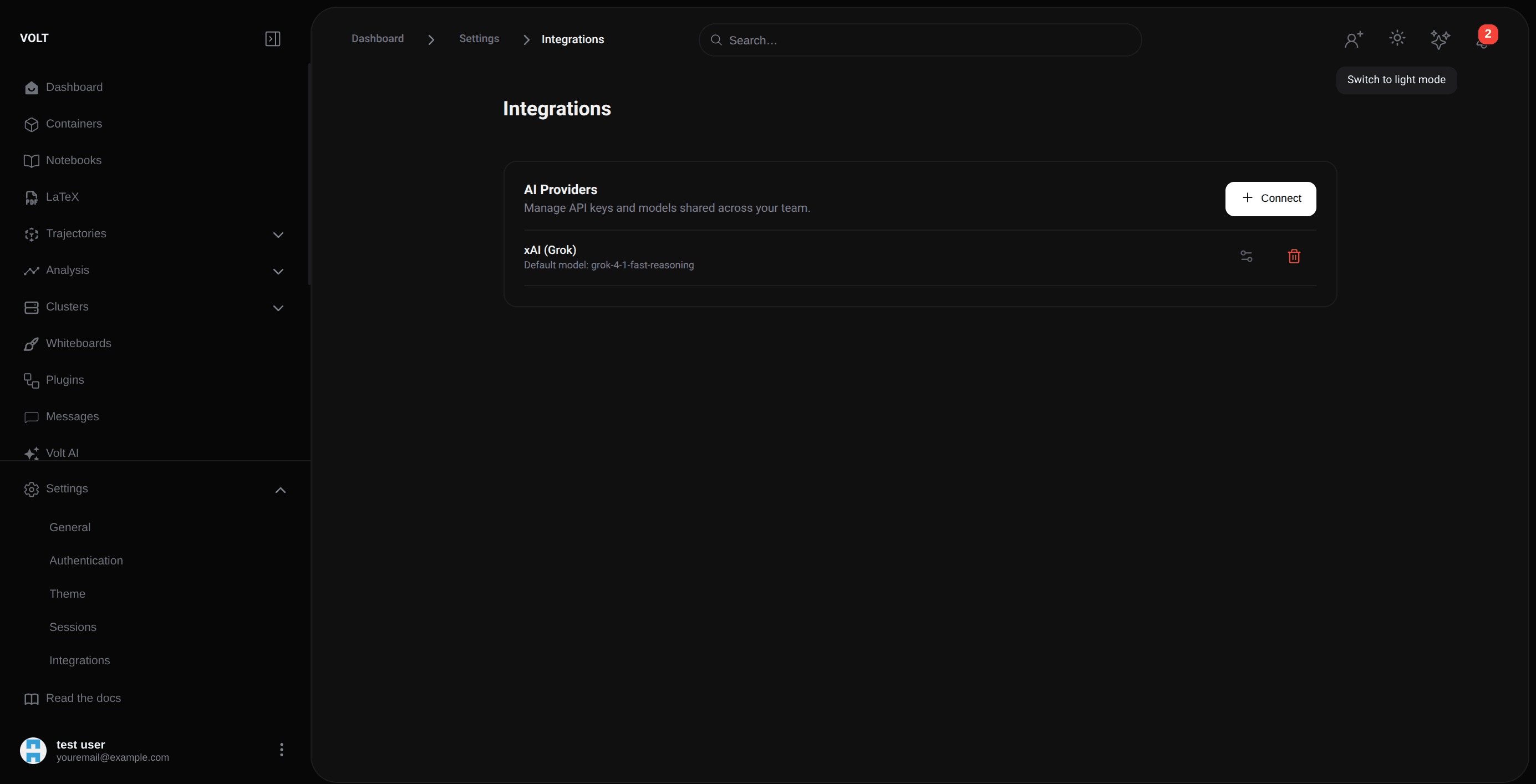
Click Add Provider, set a name, and enter the API key.
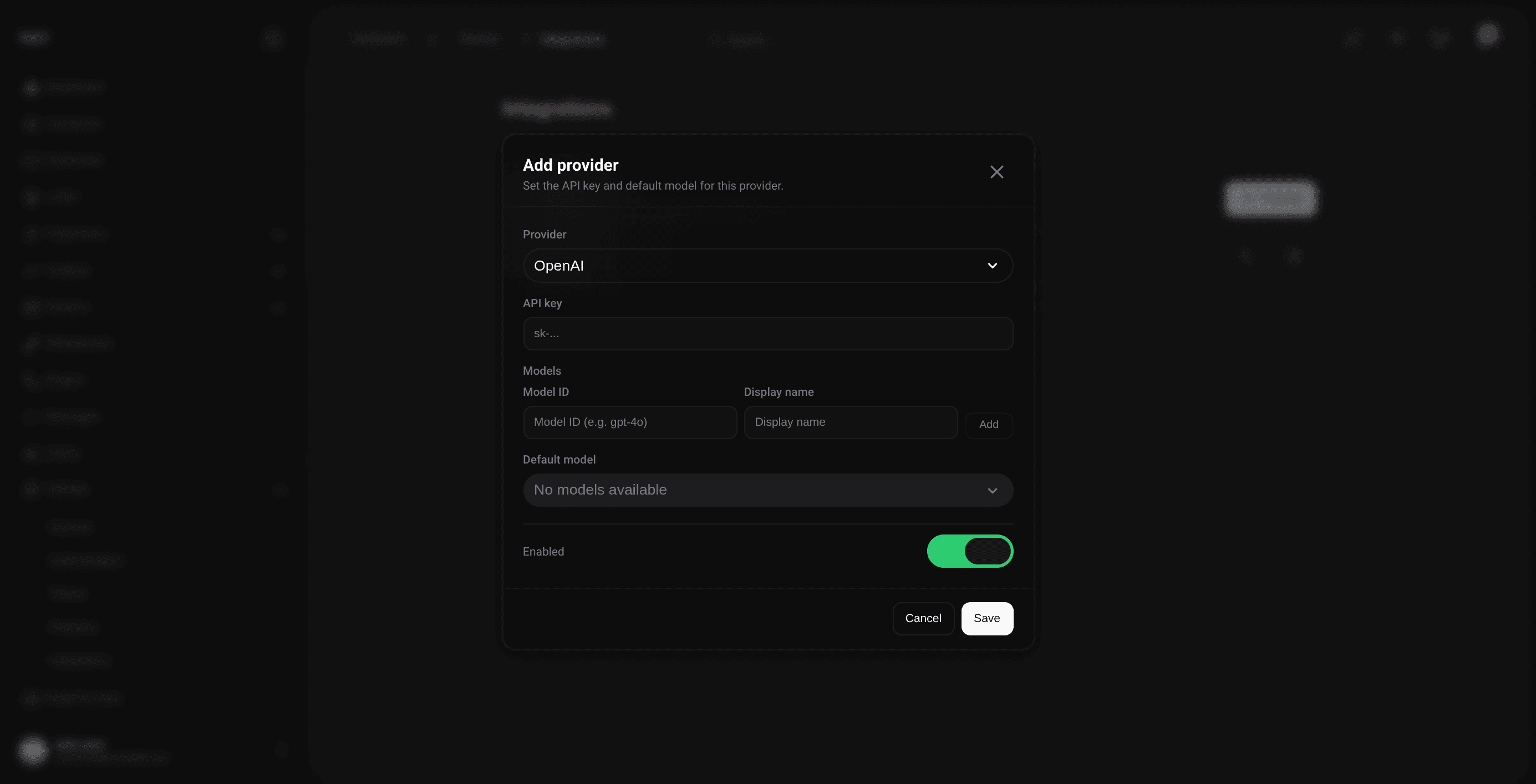
API keys are encrypted before storage and scoped to the team that configured them.
Getting an API Key
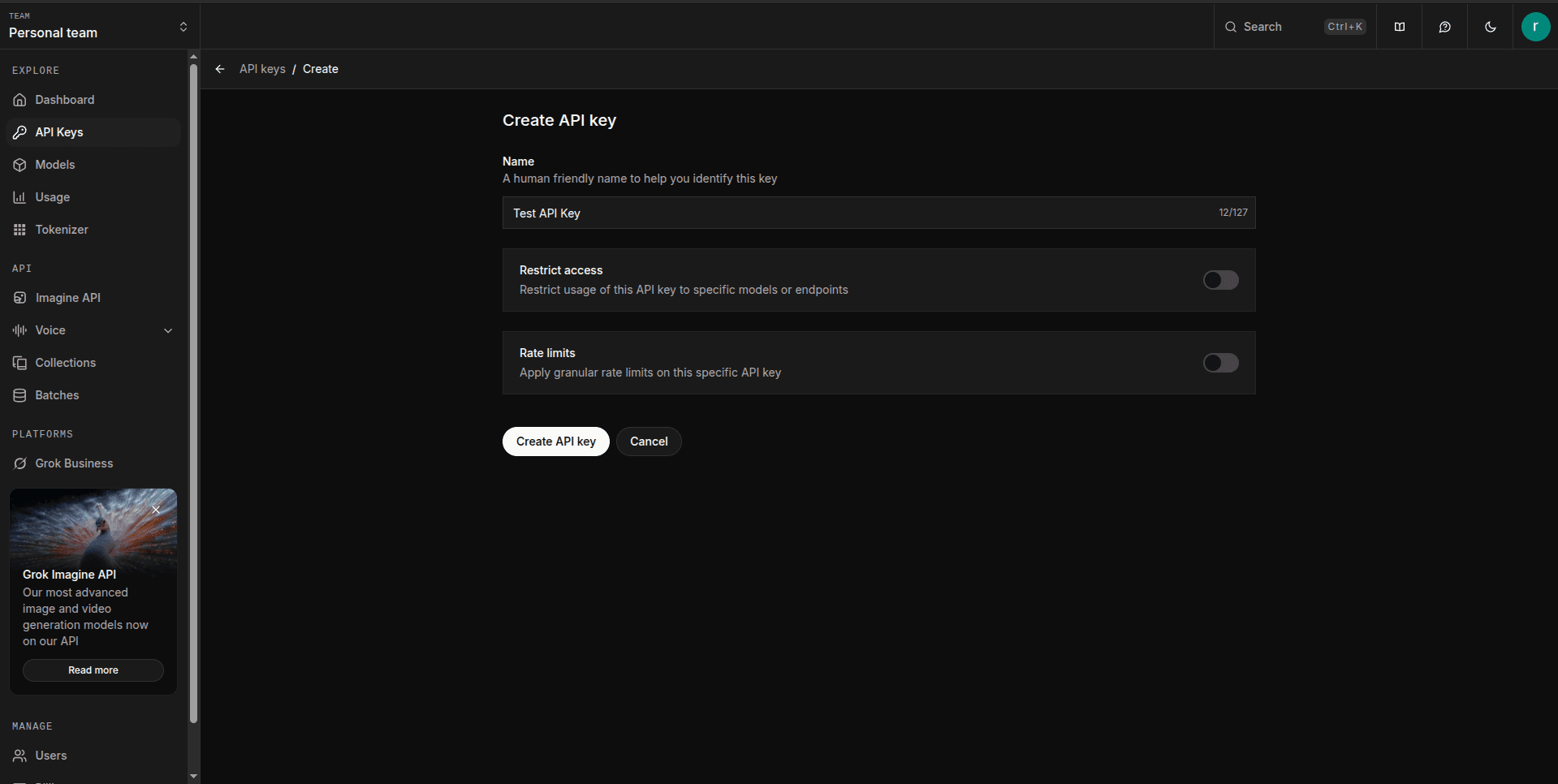
Hosted models need an API key from the provider's developer console. Self-hosted setups like Ollama need Volt AI pointed at the appropriate base URL with the desired models enabled.
Selecting Models
Select which of the provider's models are available to the team. Only enabled models appear in the Volt AI interface.
Conversation interface
Conversations are saved and streamed incrementally, and the same assistant follows you across tasks in the workspace.
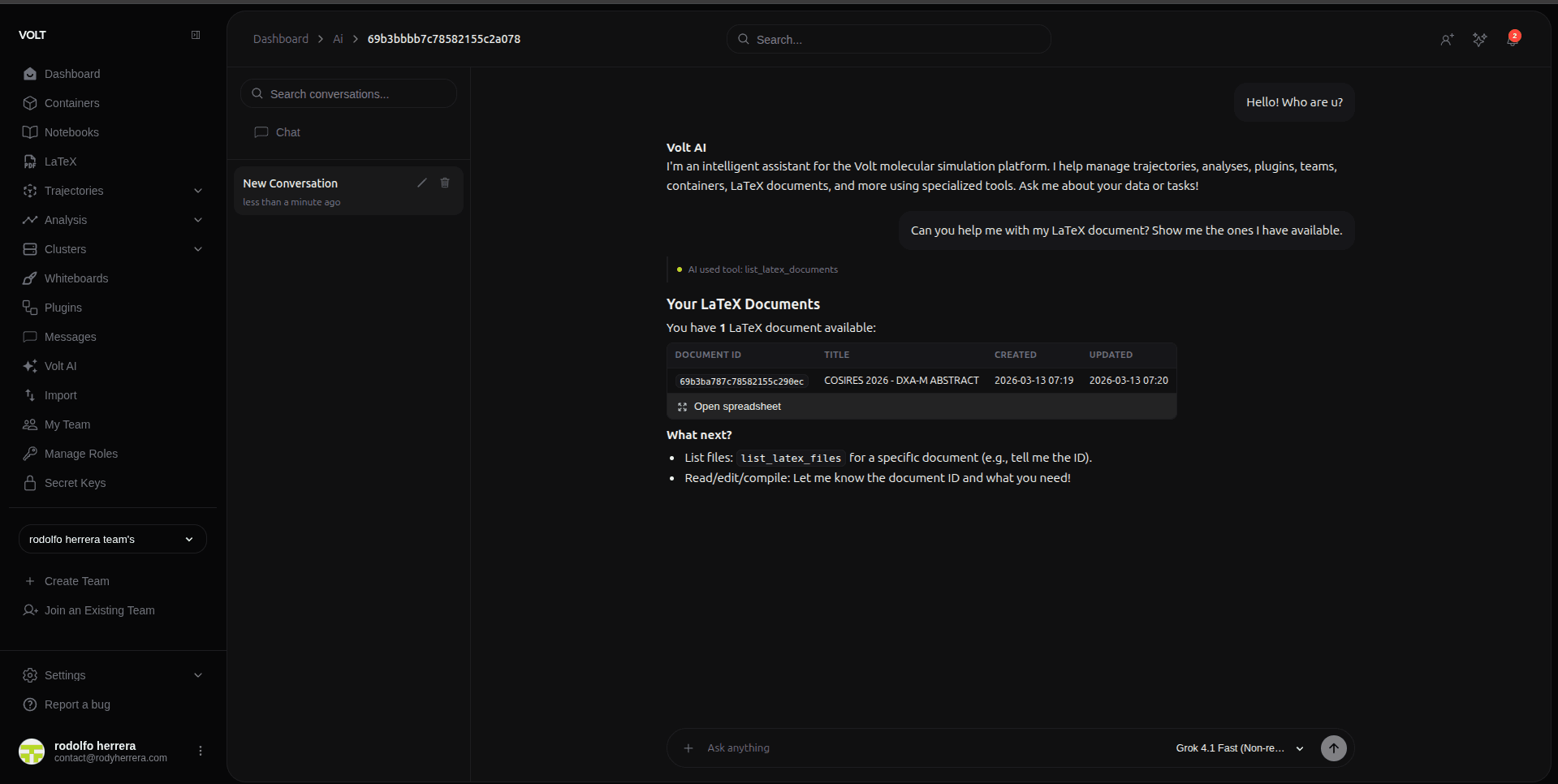
A single conversation can reach across the whole workspace — reading trajectories, running an analysis pipeline, inspecting a cluster, managing containers, and driving the canvas.
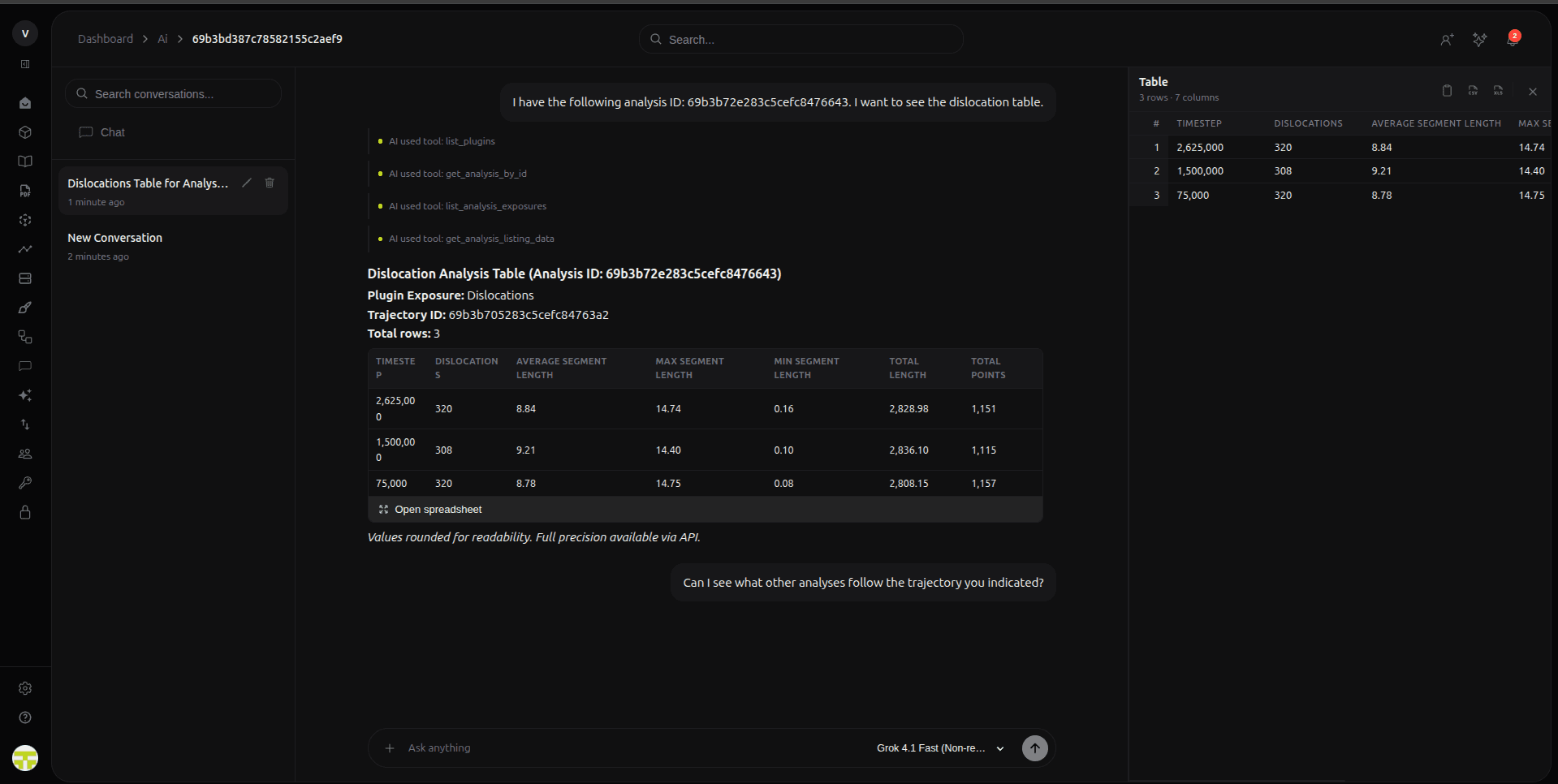
Available tools
Tools come in two families. Server tools act on workspace data through the same services and permission checks as the UI. Client tools act on your open canvas — they move the camera, toggle layers, or seek a frame, and only work while a canvas is on screen.
Mutating tools (create, update, delete) require explicit approval before execution, and every tool is subject to the caller's team permissions: the assistant cannot do anything the user could not do by hand.
Server tools
| Domain | Tools | Examples |
|---|---|---|
| Plugins & pipelines | 17 | execute_pipeline, install_plugin, search_registry_plugins, validate_workflow, publish_plugin, read_analysis_result_rows, export_analysis_result |
| Clusters | 12 | list_clusters, get_cluster_health_summary, get_cluster_runtime_snapshot, update_cluster_queue_concurrency, reveal_cluster_credentials |
| Containers | 11 | create_container, list_containers, get_container_stats, read_container_file, get_container_port_access_url |
| Analyses | 10 | list_analyses, get_analysis_frame_log, summarize_analysis_run, compare_analyses, retry_failed_analysis_frames |
| Trajectories | 10 | list_trajectories, get_trajectory, clone_trajectory, move_trajectory, get_trajectory_team_metrics |
| Whiteboards | 8 | create_whiteboard, get_whiteboard_state, move_whiteboard, delete_whiteboard_folder |
| Scripting | 7 | create_scripting_notebook, start_scripting_jupyter_session, get_scripting_session_status |
| AI conversations | 3 | list_conversations, update_conversation, delete_conversation |
| Dashboard | 2 | get_dashboard_metrics, global_search |
| Jobs | 2 | retry_team_failed_jobs, remove_team_running_jobs |
| Rendering | 1 | render_scene_screenshot |
| Other | 6 | get_team_context, get_simulation_cell, get_notifications, get_activity_summary, manage_sessions, update_profile |
execute_pipeline is the same entry point the canvas uses, so an AI-started analysis is an ordinary pipeline run — it appears in the result tree, obeys stage caching, and is indistinguishable from one you submitted yourself.
Client tools
About twenty tools drive the open canvas directly, including:
| Area | Examples |
|---|---|
| Playback | control_playback, set_playback, seek_frame |
| Camera & view | set_camera_view, reset_camera, reset_view_settings, set_appearance, set_environment |
| Scene | set_visible_layers, configure_color_coding, push_expression_select, open_in_viewer, focus_result |
| Navigation | navigate_to, open_panel, open_command_palette, switch_team, set_theme |
| Inspection | get_viewer_state |
This is what lets a request like "colour by von Mises stress and jump to the frame where it peaks" work as a single instruction.
Common tasks
Set up an AI provider
- Open the Volt AI section from the sidebar.
- Click Add Provider.
- Enter a provider name (e.g.
OpenAI Production). - Paste the API key.
- Select the models to enable for the team.
- Save the provider.
The provider appears in the list and its enabled models become available across Volt AI surfaces.
Manage a container from natural language
- Open a Volt AI conversation.
- Submit a request such as
List the containers in this team and show me the stats for the running one. - Volt AI calls the relevant container tools and summarizes the results.
- For a mutating action (for example creating or deleting a container), review the proposed action and approve it when the assistant requests confirmation.
- The action runs through the same container system as direct execution, and changes appear in the standard container views.
Troubleshooting
If Volt AI surfaces appear but produce no results, check: provider configuration, API key validity, and enabled models for the current team.