Containers
Run Docker workloads on team clusters with terminals, files, processes, stats, and HTTP port proxying.
The Containers module runs custom runtimes and services on team clusters, from templates or custom images. Each container provides terminal, file, process, stats, and exposed-port access, and shares the hardware capacity of the underlying cluster.
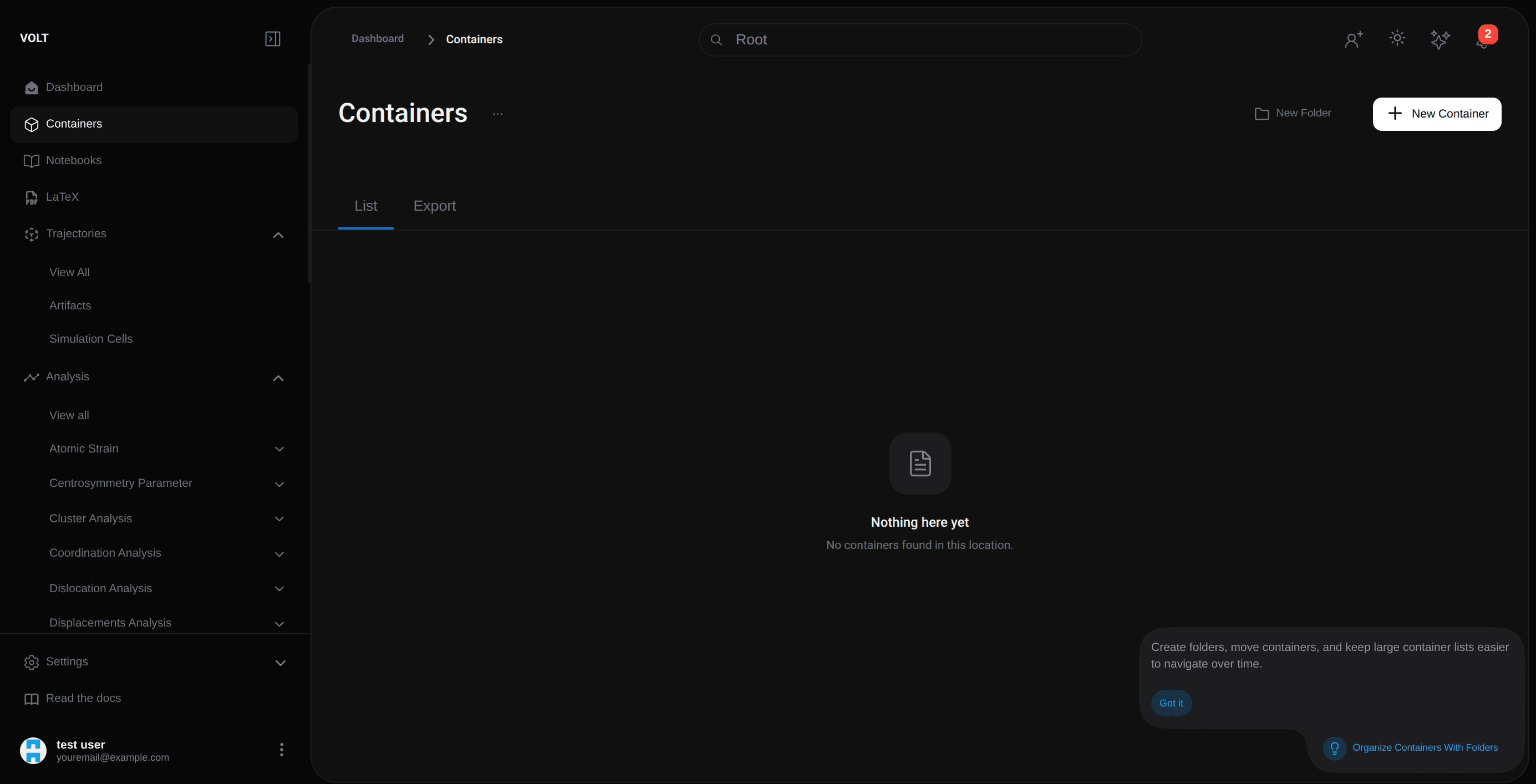
Listing and lifecycle
The listing shows existing containers and their running state. The lifecycle covers creation, resource and port adjustments, runtime use, and inspection of logs, processes, files, and updates.
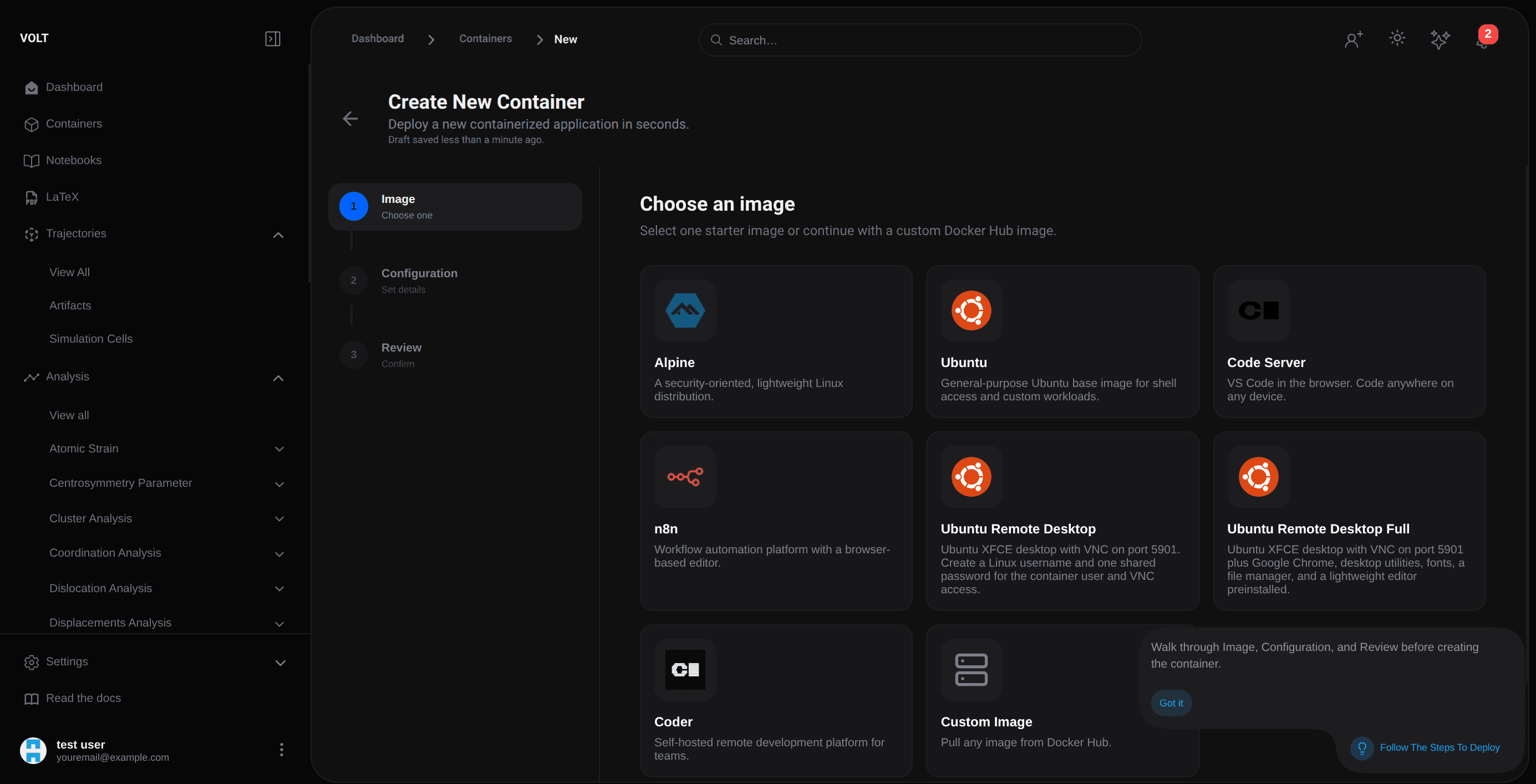
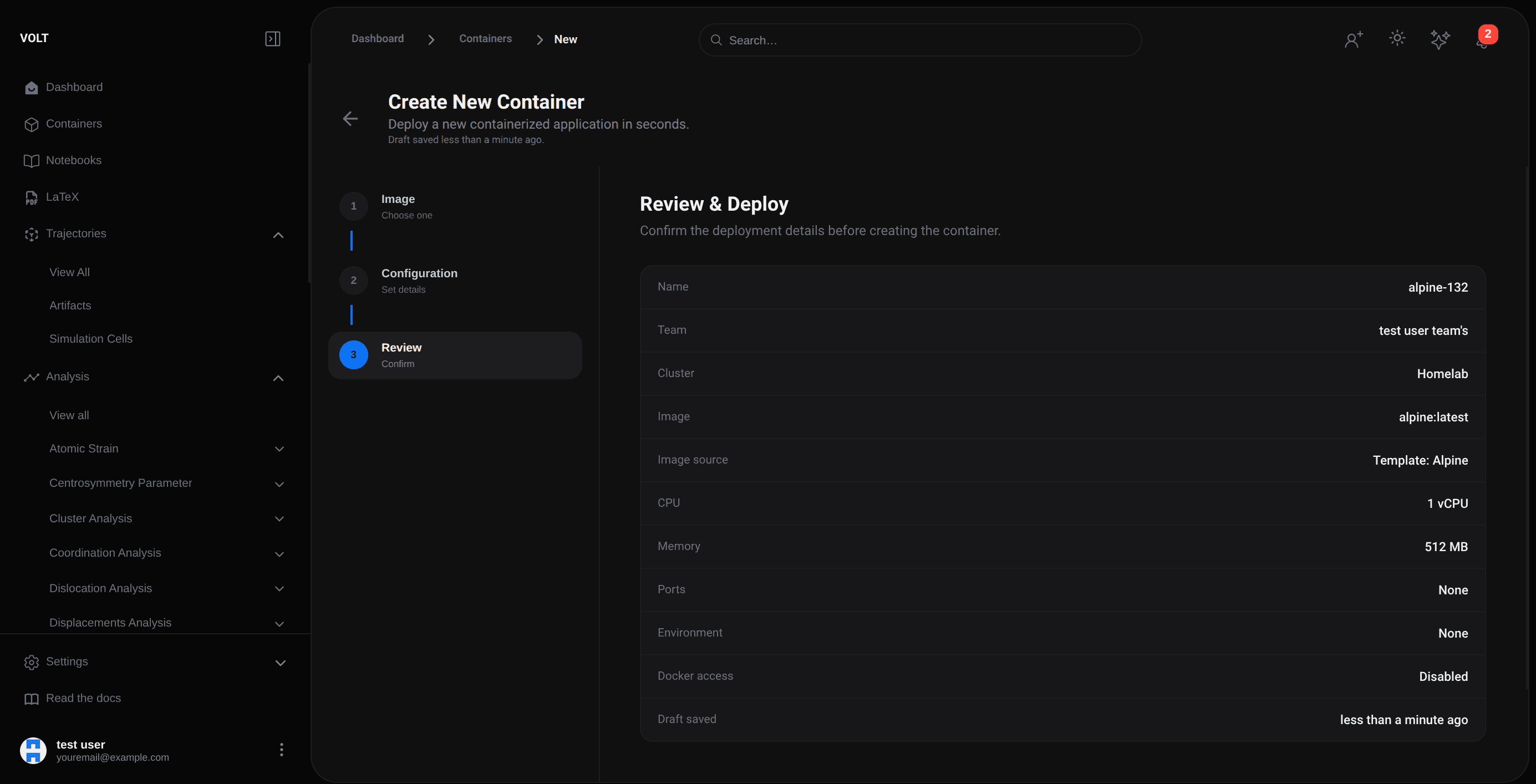
Creating a container
The creation wizard collects:
- Name, team, and deployment cluster
- CPU and memory limits
- Optional public port mappings
- Environment variables
- Any template-specific custom fields
- An advanced Docker-socket-access toggle
If no command is set and the image's own command is not used, VOLT runs an idle command so the container stays alive for later access.
Interacting with a running container
- Terminal access for shell work in the browser.
- File access for browsing and reading container content.
- Process and stats views for operational visibility.
- Port access for services routed safely through VOLT.
Port proxying and accessible services
VOLT proxies containerized services through controlled sessions routed via the team cluster, giving browser entry points for dashboards, internal tools, and other services without exposing host networking directly. When a container exposes an accessible port, the UI surfaces an "Open :PORT" action that opens the proxied HTTP service in a new browser tab.